
Building a (Very) Simple API

So I found this amazing GitHub repository with the frontend code. Now my task was to build an API to convert this static website into a dynamic website. Here is the link to the GitHub repository: https://github.com/jonasschmedtmann/complete-node-bootcamp/tree/master/1-node-farm/starter.
We will be working in this directory only. So let's start. What is an API? APIs, or Application Programming Interfaces, are like a set of rules and protocols that allow different software programs to talk to each other and share data or functionality. For example, when you use a weather app on your phone, it's probably using an API to get the current weather data from a service.
Here we will be building an API that will get information about the products from our server.
So now let us create a skeleton code for server with URL Routing.
const http = require('http');
const url = require ('url')

http.createServer ((request, response) => {
    //code for server goes here


  if(request.url==='/'){
    //code for homepage
  }else if(request.url==='/api'){
    //code for api
  }


 response.end();
}).listen(1201);
Great. Now when the user goes to /api path, we want to display the .JSON api to the user. Let's do that.
The path to the .JSON file is ${__dirname}/dev-data/data.json. First of all we will be loading a library called fs that helps us read files.
const fs = require ('fs')
Now let us use this to read our .JSON file.
data=fs.readFileSync(`${__dirname}/dev-data/data.json`,'utf-8')
Next, we can display the API when the user goes to /api page.
    response.writeHead(200,{'Content-type':'application/json'});
    response.end(data);
And we are done... we can check if our API is running by going to localhost:1201/api.
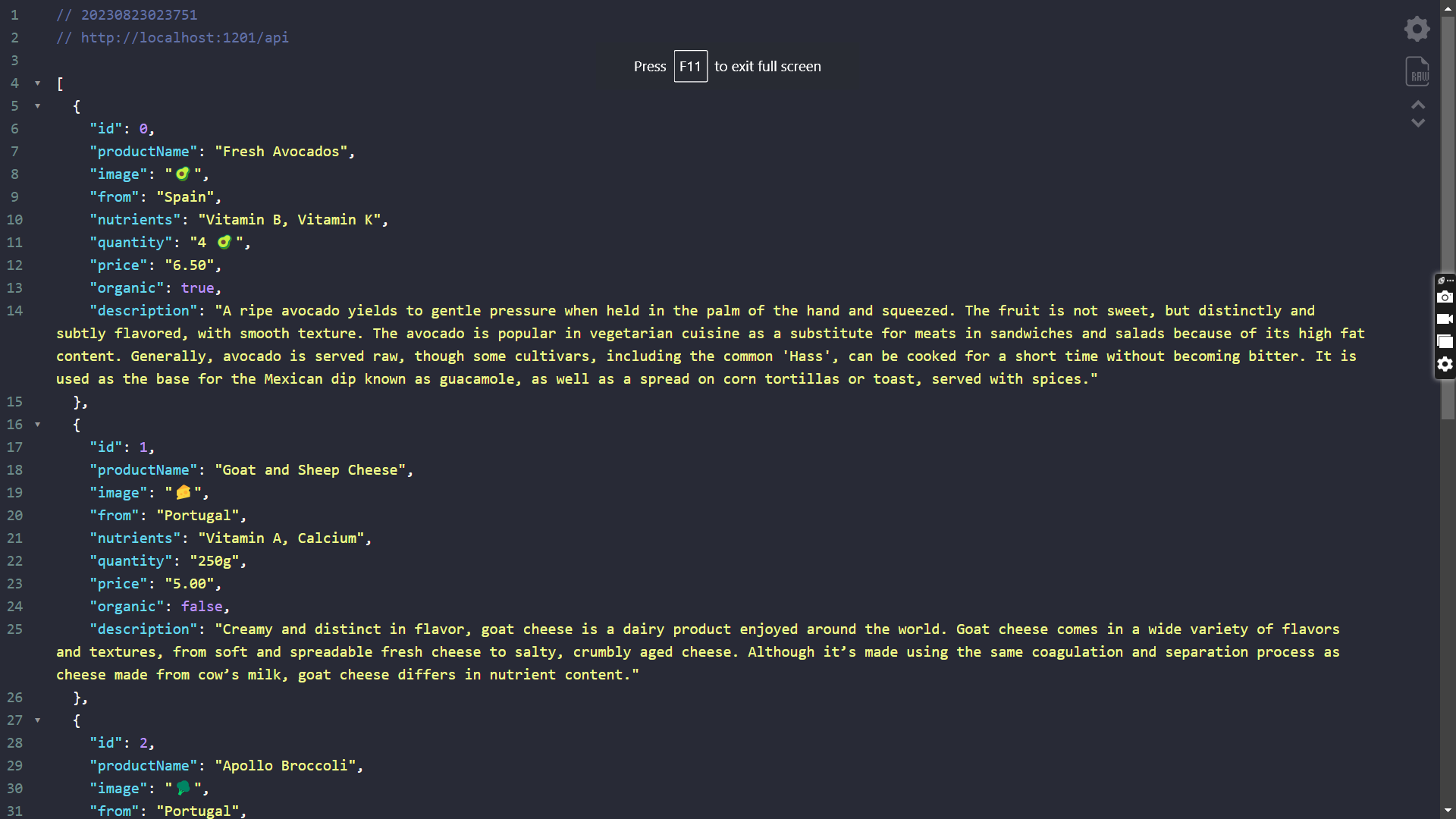
Now that we have created and hosted our API, let's run it. Because what use is an API if we don't use it?
Now let us start with product.html file which is in the templates folder. We will be making this file dynamic. To do that, first of all we will be replacing all the content that we intend to get from the API with JavaScript placeholders.
JavaScript placeholders are like variables. These placeholders get replaced by actual data when the site is running.
<!DOCTYPE html>
<html lang="en">
  <head>
    <meta charset="UTF-8" />
    <meta name="viewport" content="width=device-width, initial-scale=1.0" />
    <meta http-equiv="X-UA-Compatible" content="ie=edge" />
    <link
      href="https://fonts.googleapis.com/css?family=Megrim|Nunito+Sans:400,900"
      rel="stylesheet"
    />
    <link
      rel="icon"
      href="https://emojipedia-us.s3.dualstack.us-west-1.amazonaws.com/thumbs/240/apple/155/ear-of-maize_1f33d.png"
    />

    <title>{%PRODUCT_NAME%} 🥑 /// NODE FARM</title>

    <style>
      *,
      *::before,
      *::after {
        margin: 0;
        padding: 0;
        box-sizing: inherit;
      }

      html {
        font-size: 62.5%;
        box-sizing: border-box;
      }

      body {
        padding: 5rem 5rem 10rem;
        line-height: 1.7;
        font-family: 'Nunito Sans', sans-serif;
        color: #555;
        min-height: 100vh;
        background: linear-gradient(to bottom right, #9be15d, #00e3ae);
      }

      h1 {
        font-family: 'Megrim', sans-serif;
        font-size: 6rem;
        color: white;
        transform: skewY(-5deg);
        text-align: center;
        position: relative;
        word-spacing: 3px;
      }

      h1::before {
        content: '';
        display: block;
        height: 65%;
        width: 49%;
        position: absolute;
        top: 105%;
        left: 50%;
        background: linear-gradient(to bottom, #9be15d, #00e3ae);
        opacity: 0.8;
        z-index: -1;
        transform: skewY(370deg) translate(-50%, -50%);
      }

      .container {
        width: 95rem;
        margin: 0 auto;
      }

      .product {
        width: 60rem;
        margin: 0 auto;
        margin-top: 9rem;
        background: white;
        box-shadow: 0 3rem 6rem 1rem rgba(0, 0, 0, 0.2);
        position: relative;
      }

      .product__hero {
        position: relative;
        height: 22rem;
        overflow: hidden;
      }

      .product__hero::before {
        content: '';
        display: block;
        height: 100%;
        width: 100%;
        position: absolute;
        top: 0;
        left: 0;
        background-image: linear-gradient(to left bottom, #9be15d, #00e3ae);
        opacity: 0.5;
        z-index: 100;
      }

      .product__emoji {
        font-size: 15rem;
        position: absolute;
      }

      .product__emoji--1 {
        top: -4rem;
        left: -2rem;
        z-index: 10;
      }

      .product__emoji--2 {
        top: -6rem;
        left: 9rem;
      }

      .product__emoji--3 {
        top: -4rem;
        right: 15rem;
      }

      .product__emoji--4 {
        top: -5rem;
        right: 2rem;
        z-index: 10;
      }

      .product__emoji--5 {
        bottom: -9rem;
        left: 18rem;
      }

      .product__emoji--6 {
        bottom: -8rem;
        left: 5rem;
      }

      .product__emoji--7 {
        bottom: -12rem;
        right: 14rem;
      }

      .product__emoji--8 {
        bottom: -8rem;
        right: -2rem;
      }

      .product__emoji--9 {
        top: -7rem;
        left: 19rem;
      }

      .product__organic {
        position: absolute;
        top: -4rem;
        right: -4rem;
        z-index: 1000;
        height: 11rem;
        width: 11rem;
        background-image: linear-gradient(to bottom, #9be15d, #00e3ae);
        border-radius: 50%;
        transform: rotate(15deg);
        box-shadow: 0 2rem 4rem rgba(0, 0, 0, 0.4);
        display: flex;
        align-items: center;
        justify-content: center;
      }

      .product__organic h5 {
        font-weight: 900;
        text-transform: uppercase;
        font-size: 1.8rem;
        color: white;
      }

      .product__back:link,
      .product__back:visited {
        position: absolute;
        top: 2rem;
        left: 2rem;
        font-size: 1.5rem;
        font-weight: 700;
        text-transform: uppercase;
        text-decoration: none;
        z-index: 1000;
        color: #555;
        background-color: white;
        box-shadow: 0 1rem 3rem rgba(0, 0, 0, 0.3);
        border-radius: 100rem;
        padding: 0 2rem;
        transition: all 0.3s;
        display: flex;
        align-items: center;
      }

      .product__back:hover,
      .product__back:active {
        background-color: #79e17b;
      }

      .product__name {
        background: linear-gradient(to bottom, #9be15d, #00e3ae);
        padding: 1rem;
        font-family: 'Megrim', sans-serif;
        font-size: 4rem;
        color: white;
        text-align: center;
        word-spacing: 2px;
      }

      .product__details {
        background-color: #eee;
        padding: 4rem 6rem;
        font-size: 1.9rem;
        display: grid;
        grid-template-columns: 1fr 1fr;
        grid-gap: 1.5rem;
      }

      .product__description {
        padding: 5rem 6rem;
        font-size: 1.6rem;
        line-height: 1.8;
      }

      .product__link:link,
      .product__link:visited {
        display: block;
        background-color: #79e17b;
        color: white;
        font-size: 1.6rem;
        font-weight: 700;
        text-transform: uppercase;
        text-decoration: none;
        padding: 1.5rem;
        text-align: center;
        transform: scale(1.07) skewX(-20deg);
        box-shadow: 0 2rem 6rem rgba(0, 0, 0, 0.2);
        display: flex;
        align-items: center;
        justify-content: center;
        transition: all 0.3s;
      }

      .product__link:hover,
      .product__link:active {
        background-color: #9be15d;
        transform: scale(1.1) skewX(-20deg);
      }

      .product__link span {
        transform: skewX(20deg);
      }

      .emoji-left {
        font-size: 2rem;
        margin-right: 1rem;
      }

      .emoji-right {
        font-size: 2rem;
        margin-left: 1rem;
      }

      .not-organic {
        display: none;
      }
    </style>
  </head>

  <body>
    <div class="container">
      <h1>🌽 Node Farm 🥦</h1>

      <figure class="product">
        <div class="product__organic"><h5>Organic</h5></div>
        <a href="#" class="product__back">
          <span class="emoji-left">👈</span>Back
        </a>
        <div class="product__hero">
          <span class="product__emoji product__emoji--1">{%PRODUCT_EMOJI%}</span>
          <span class="product__emoji product__emoji--2">{%PRODUCT_EMOJI%}</span>
          <span class="product__emoji product__emoji--3">{%PRODUCT_EMOJI%}</span>
          <span class="product__emoji product__emoji--4">{%PRODUCT_EMOJI%}</span>
          <span class="product__emoji product__emoji--5">{%PRODUCT_EMOJI%}</span>
          <span class="product__emoji product__emoji--6">{%PRODUCT_EMOJI%}</span>
          <span class="product__emoji product__emoji--7">{%PRODUCT_EMOJI%}</span>
          <span class="product__emoji product__emoji--8">{%PRODUCT_EMOJI%}</span>
          <span class="product__emoji product__emoji--9">{%PRODUCT_EMOJI%}</span>
        </div>
        <h2 class="product__name">{%PRODUCT_NAME%}</h2>
        <div class="product__details">
          <p><span class="emoji-left">🌍</span> From {%PRODUCT_COUNTRY%}</p>
          <p><span class="emoji-left">❤️</span> {%PRODUCT_NUTRIENTS%}</p>
          <p><span class="emoji-left">📦</span> {%PRODUCT_QUANTITY%}</p>
          <p><span class="emoji-left">🏷</span> {%PRODUCT_PRICE%}</p>
        </div>

        <a href="#" class="product__link">
          <span class="emoji-left">🛒</span>
          <span>Add to shopping card ({%PRODUCT_PRICE%})</span>
        </a>

        <p class="product__description">
          {%PRODUCT_DESCRIPTION%}
        </p>
      </figure>

    </div>
  </body>
</html>
Now after replacing all dynamic content here, I felt that I have done it all - but wait, something was missing. So, I went to the api and found out something. In the API we have an attribute that tells us that if the product is organic or not.
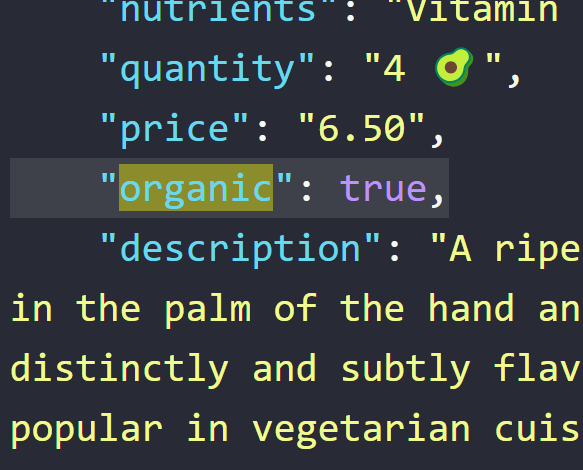
And when we open the HTML file in browser we find that we have the organic tag there - and it is static. We want it to be dynamic. It should be displayed only if organic is true. So, how will we do that?
If we go through the CSS on this file, we will come across this line of code:
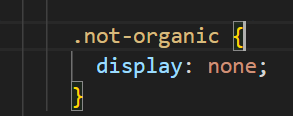
We want this class to be added to our element, but only if the product is not organic. Hence, we can add a parameter to the style attribute.
<div class="product__organic {%PRODUCT_ORGANIC%}"><h5>Organic</h5></div>
Now we will get back to this file later on. Let us go to the overview.html file.
The code for this file would be a bit different - you see we have some cards in the html file and the code for these cards are a bit similar. We are essentially repeating the code which we do not want. Also if we update the API and add a new product, we want a new card to be added automatically without altering the code, don't we? So, how do we do that?
First of all, let us create a new file that will contain our code for the cards.
<figure class="card">
    <div class="card__emoji">🧀🧀</div>
    <div class="card__title-box">
      <h2 class="card__title">Goat and Sheep Cheese</h2>
    </div>

    <div class="card__details">
      <div class="card__detail-box">
        <h6 class="card__detail">250g per 📦</h6>
      </div>

      <div class="card__detail-box">
        <h6 class="card__detail card__detail--price">5.00€</h6>
      </div>
    </div>

    <a class="card__link" href="#">
      <span>Detail <i class="emoji-right">👉</i></span>
    </a>
  </figure>
I named this file card.html. You can name it anything you like. Now, let us make the cards.html file dynamic.
<figure class="card">
    <div class="card__emoji">{%PRODUCT_EMOJI%}{%PRODUCT_EMOJI%}</div>
    <div class="card__title-box">
      <h2 class="card__title">{%PRODUCT_NAME%}</h2>
    </div>

    <div class="card__details">
      <div class="card__detail-box {%PRODUCT_ORGANIC%}">
        <h6 class="card__detail">{%PRODUCT_QUANTITY%} per 📦</h6>
      </div>

      <div class="card__detail-box">
        <h6 class="card__detail card__detail--price">{%PRODUCT_PRICE%}</h6>
      </div>
    </div>

    <a class="card__link" href="/product?id+{%PRODUCT_ID%}">
      <span>Detail <i class="emoji-right">👉</i></span>
    </a>
  </figure>
Great we have done our HTML Templating. Now comes the hardest part which is to replace the placeholders with actual content.
First of all, we will redirect our homepage to overview.html.
response.writeHead(200,{'Content-type':'text/html'}).end(overview);
Now let us look at our homepage.
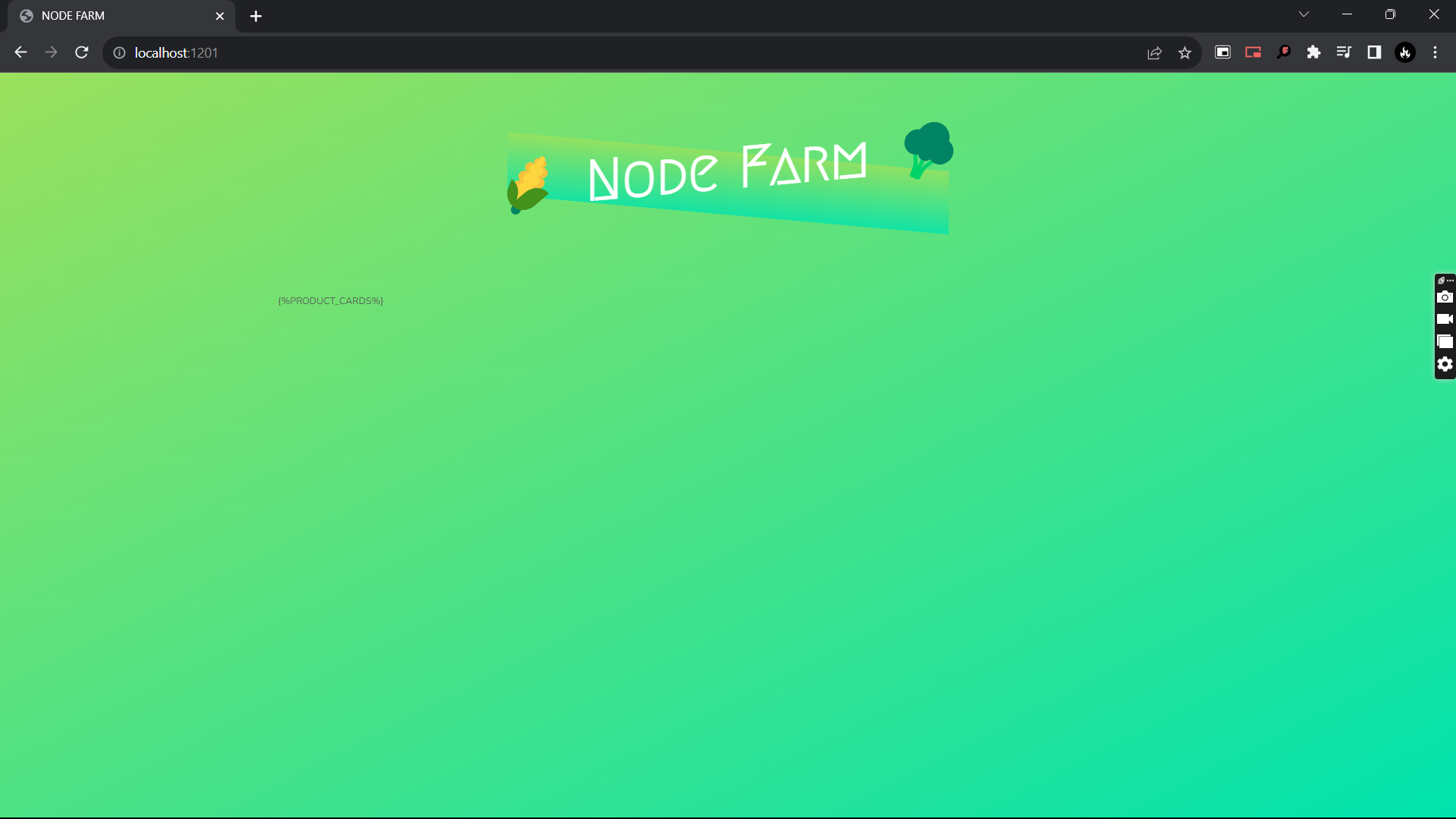
This is how it looks like. Now we need to replace the {%PRODUCT_CARDS%} placeholder with actual product cards. So let us do that.
In our file we have productData which is an array of five objects (because there are five items in the JSON file).
const productData = JSON.parse(data);
Now let us create a function that will take in the htmlFile and the JSON File and it will replace the dynamic content of the html file.
    const replaceTemplates = (htmlFile,jsonFile)=>{
        let output=htmlFile;
        output=output.replace(/{%PRODUCT_NAME%}/g,jsonFile.productName),
        output=output.replace(/{%PRODUCT_EMOJI%}/g,jsonFile.image),
        output=output.replace(/{%PRODUCT_COUNTRY%}/g,jsonFile.from),
        output=output.replace(/{%PRODUCT_NUTRIENTS%}/g,jsonFile.nutrients),
        output=output.replace(/{%PRODUCT_QUANTITY%}/g,jsonFile.quantity),
        output=output.replace(/{%PRODUCT_PRICE%}/g,jsonFile.price),
        output=output.replace(/{%PRODUCT_DESCRIPTION%}/g,jsonFile.description),
        output=output.replace(/{%PRODUCT_ID%}/g,jsonFile.id)
        return output
    }
Please note that here we have still not replaced {%NOT_ORGANIC%}. So, let us do that now.
if(!jsonFile.organic) output = output.replace("{%PRODUCT_ORGANIC%}","not-organic")
So basically if organic is false, then we will replace the placeholder else we won't replace the placeholder. Please note that we have used placeholder as a string because it is a string in the original file too (check the original file).
Now let us get the html code for all the cards.
const cardsHtml=productData.map(element=>replaceTemplates(card,element)).join('')
So, what is happening here? Well... we are taking in productData and converting it to a map. Here each element of the productData array is taken into consideration and then replaced in the card html and then put in cardsHtml map. After the map is created the join('') method joins all the elements of the map to make one string, which is our entire code for the cards.
This is what I get when I log cardsHtml into console:
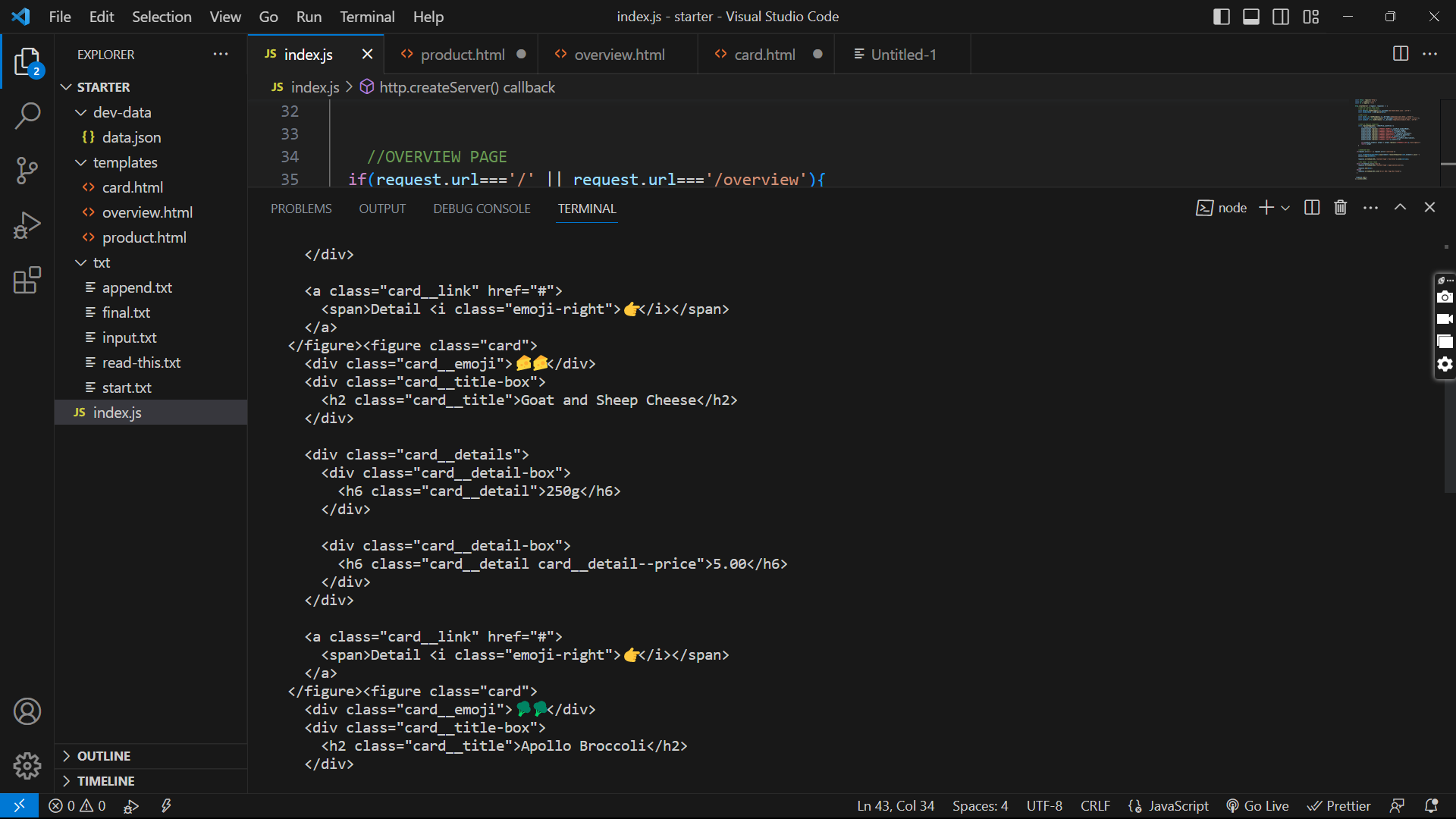
As we can see this is the exact html code needed by us to display the cards. So, what are we waiting for? Let's do that.
    const homePage = overview.replace(/{%PRODUCT_CARDS%}/g,cardsHtml);

    response.writeHead(200,{'Content-type':'text/html'}).end(homePage);
And finally when we run it in the browser - here we have the output:
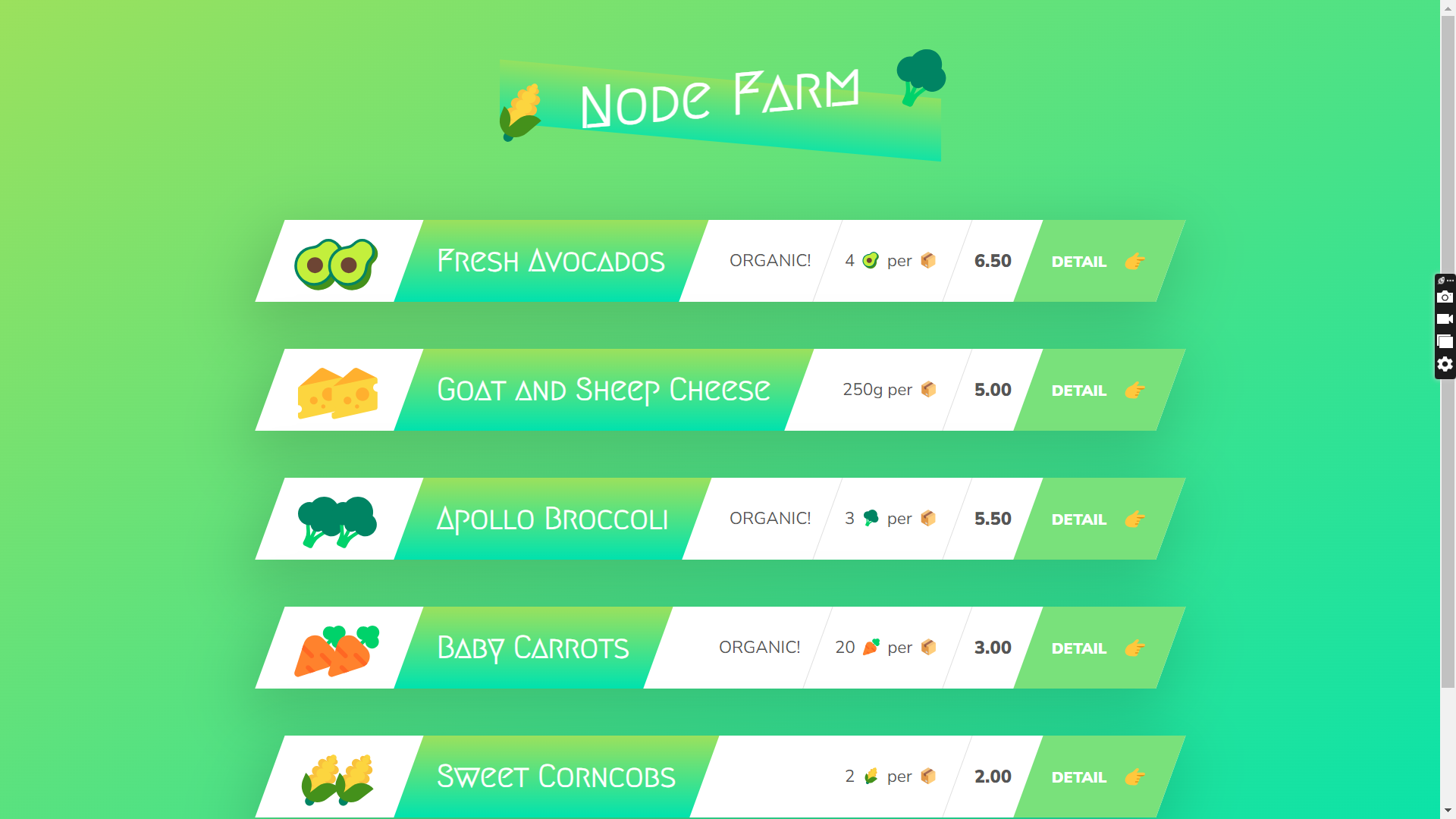
We successfully created the UI of our homepage using an API.


